


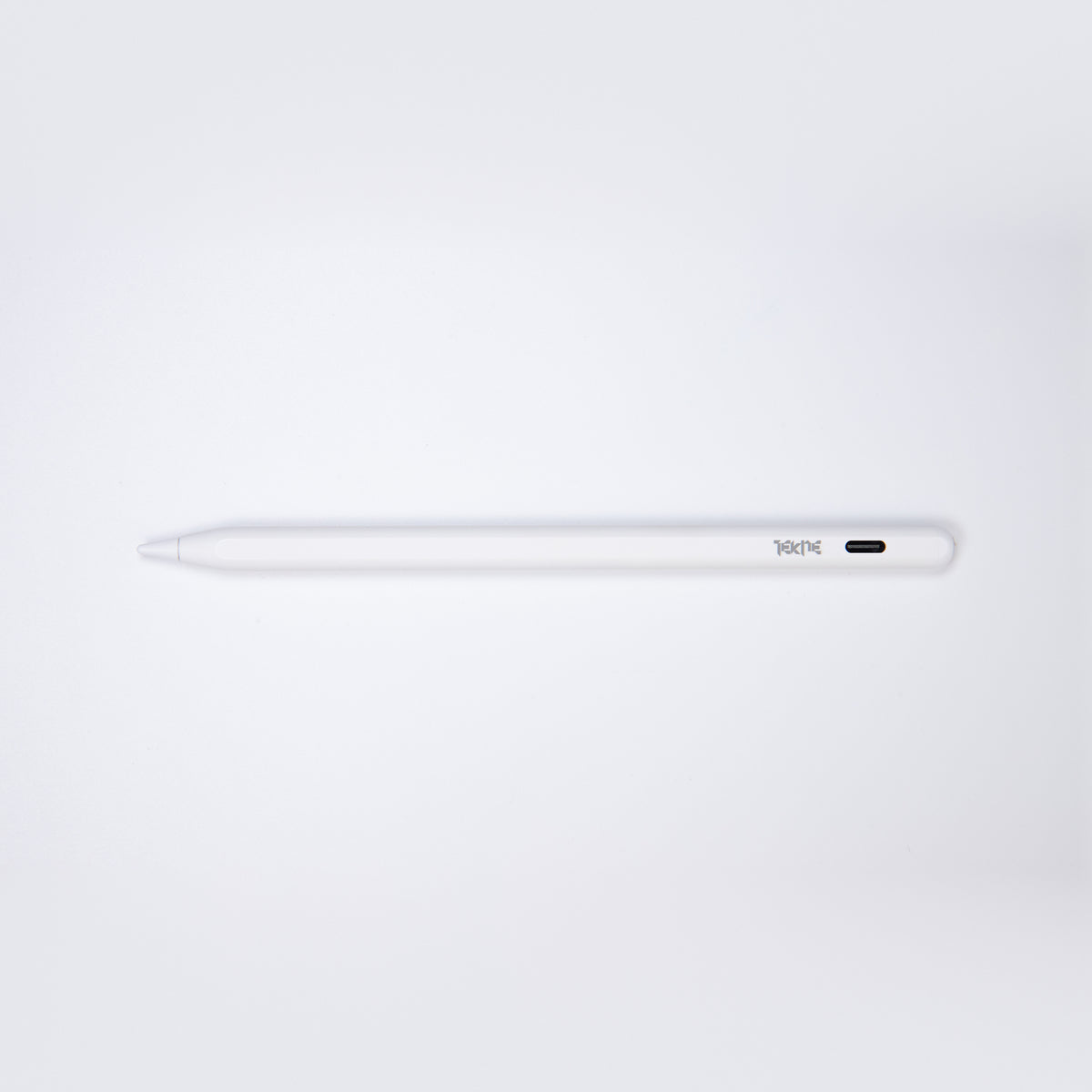
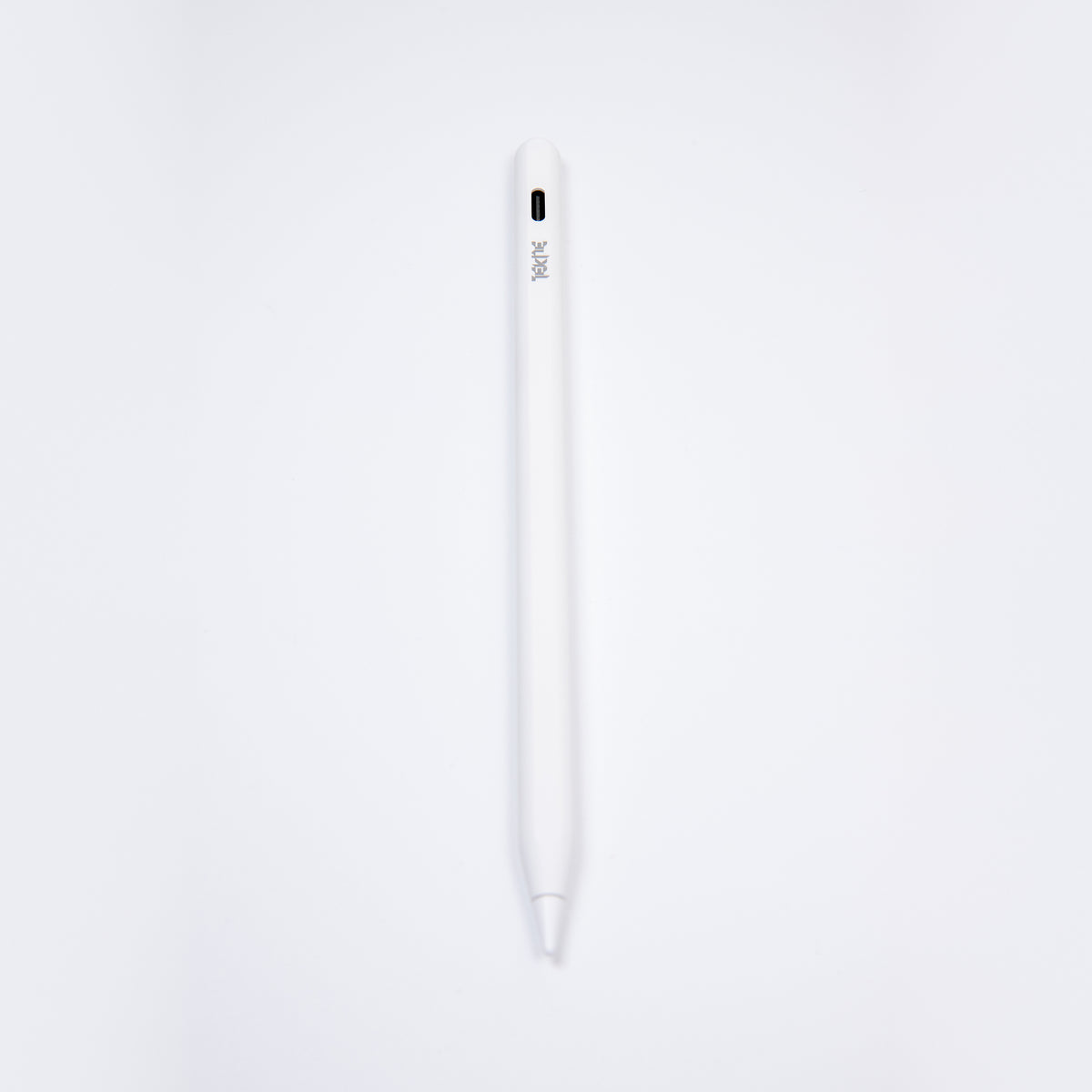
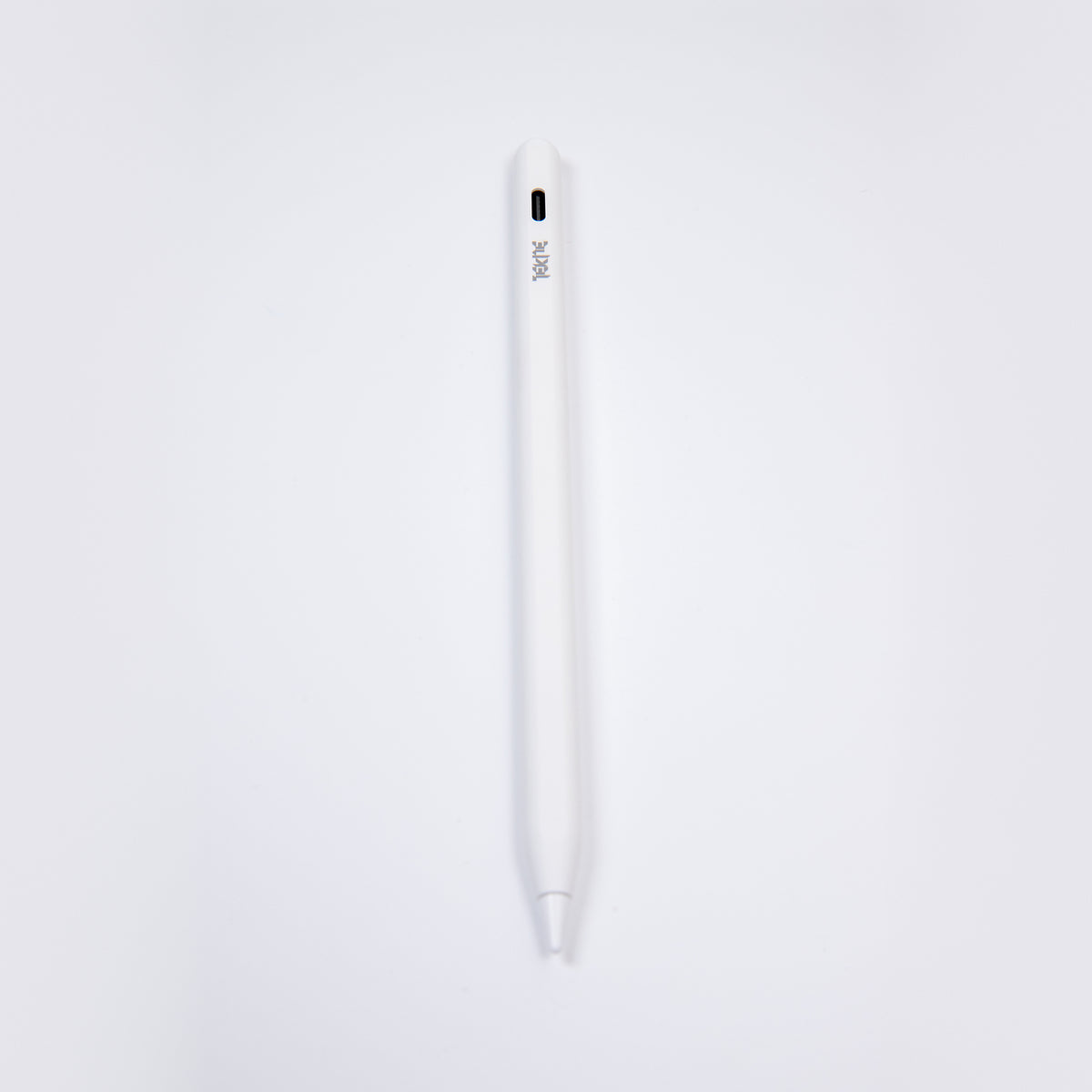
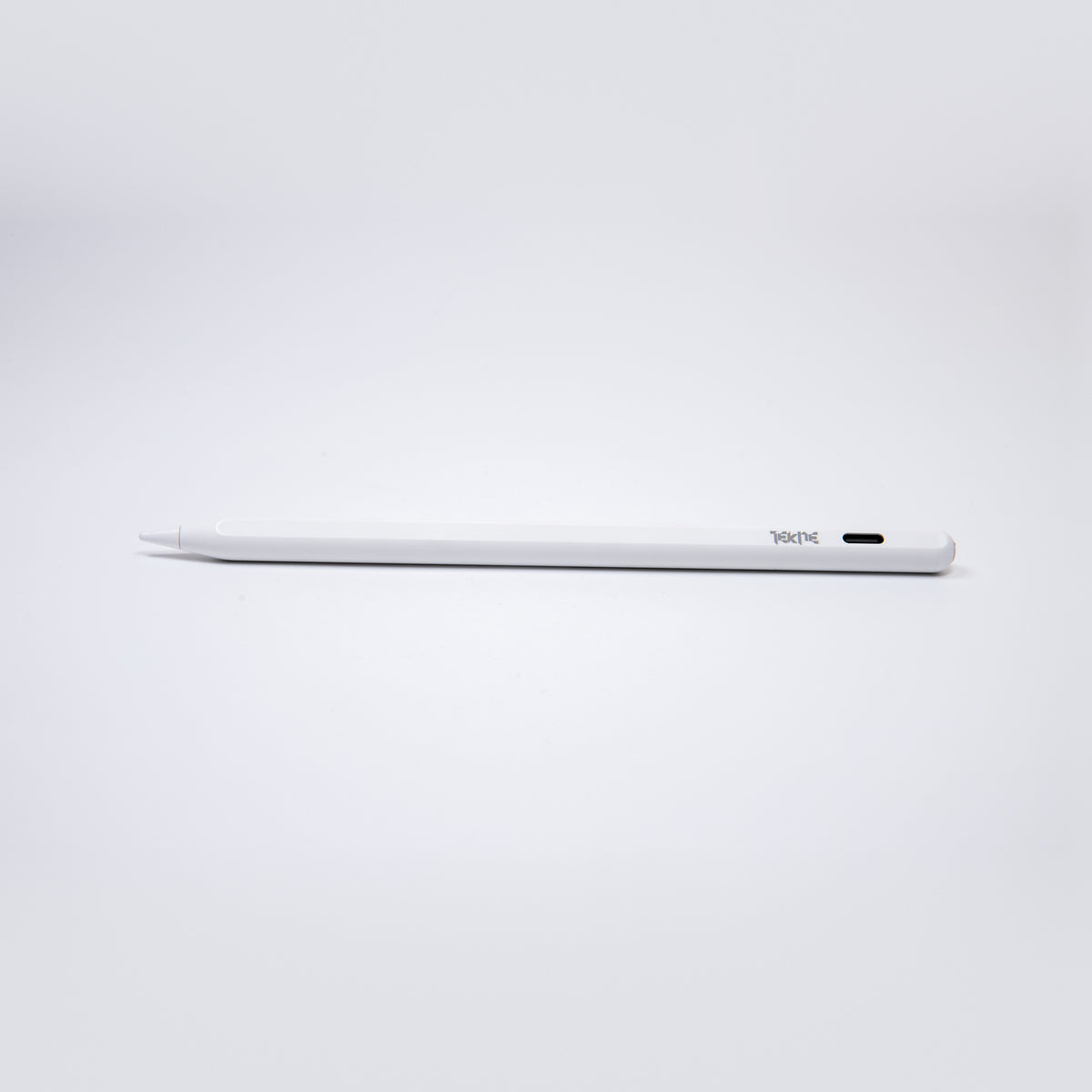
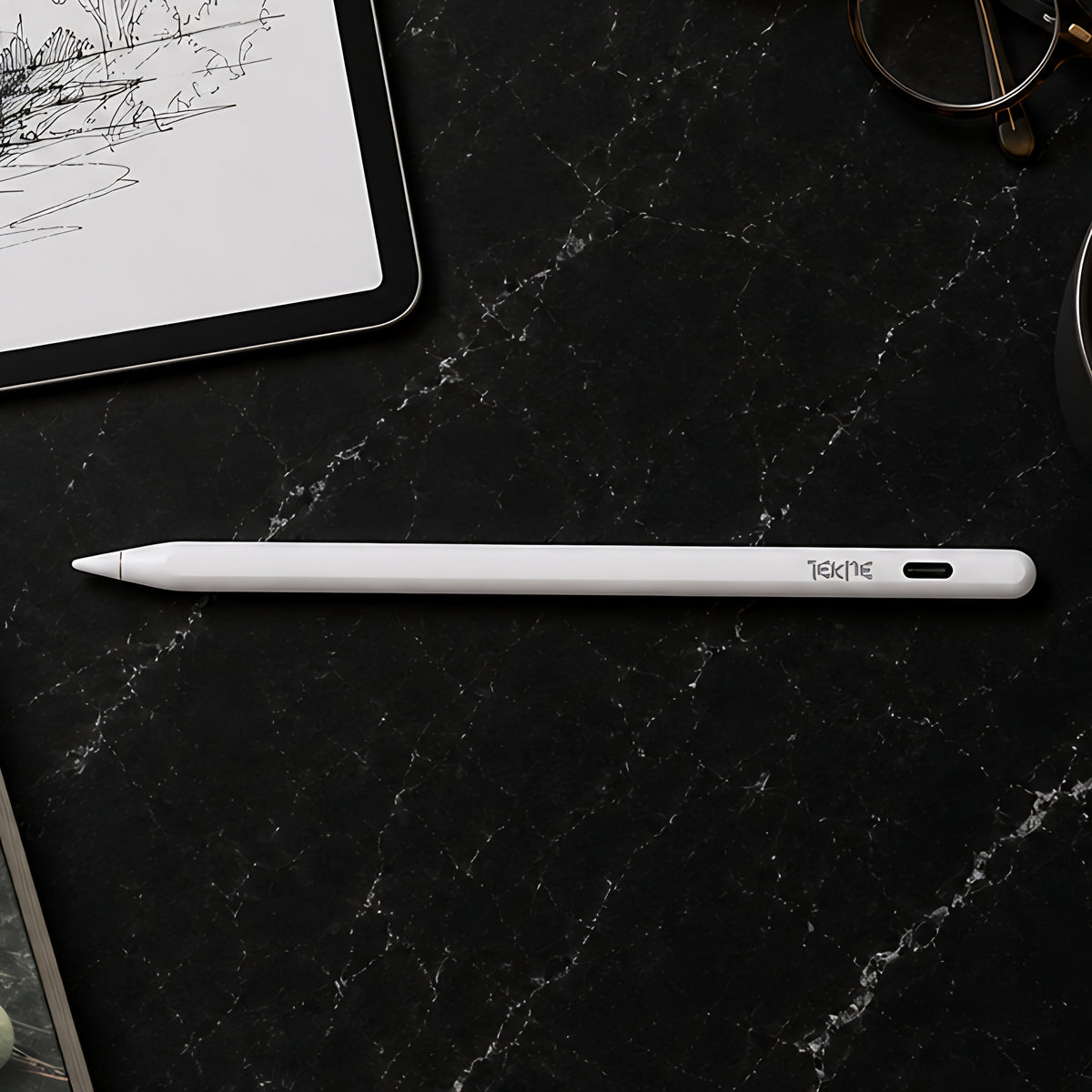
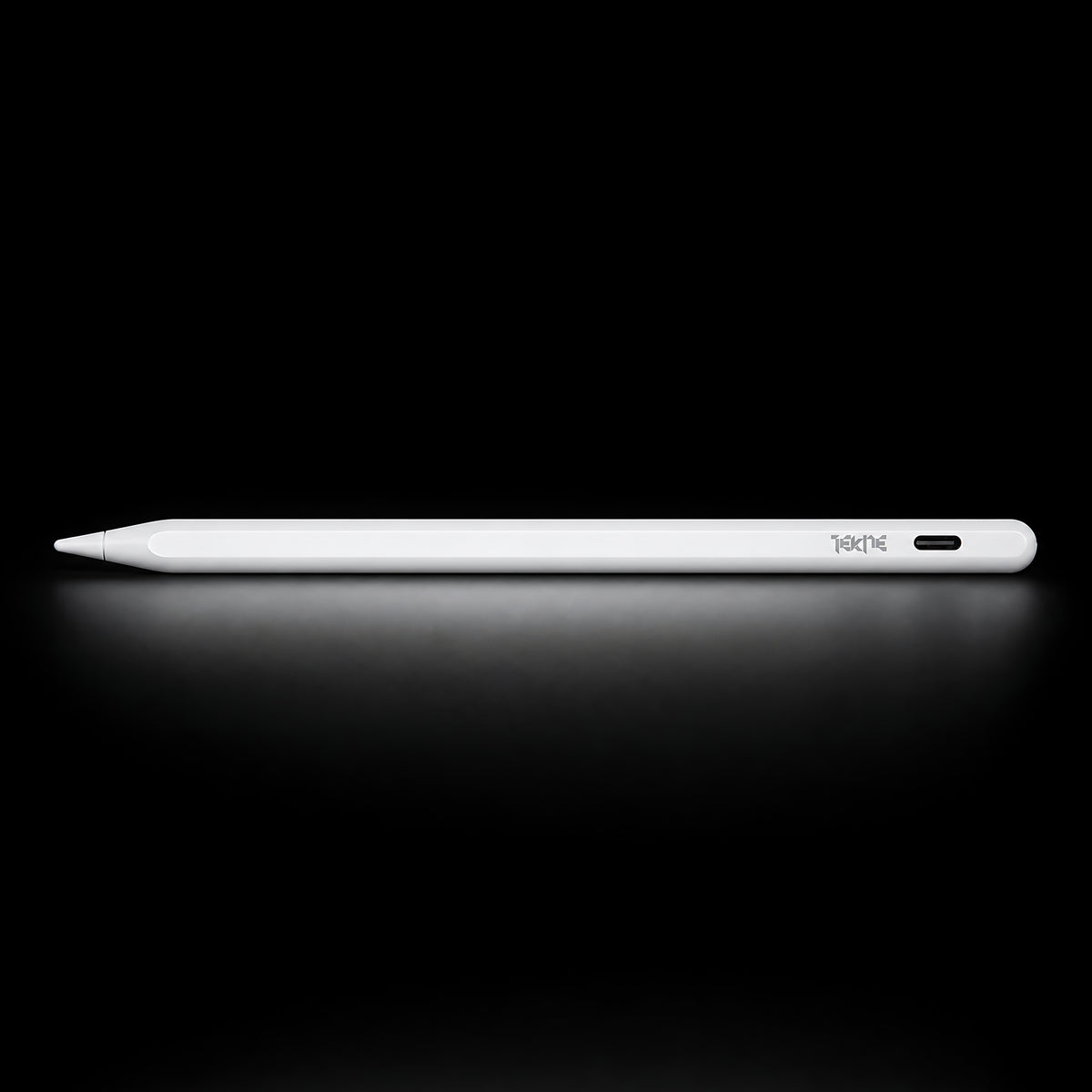
TEKNE PIX Pro-White
TPL25-0001

Use SAVE10TEKNE coupon to get 10% OFF on your purchase.
Pairs well with
Shiping Details
More Details
TEKNE PIX Pro White iPad Stylus
Make writing, note-taking and creative work on your iPad feel more natural with the TEKNE PIX Pro in White.
A pen-style accessory can make an iPad more useful for handwritten notes, document markup, planning, sketching and precise touchscreen interaction.
If you are looking for an iPad pen, stylus pen for iPad or an Apple Pencil alternative, the PIX Pro is an option to consider for your everyday iPad setup.
What Is the TEKNE PIX Pro?
The TEKNE PIX Pro is a pen-style accessory for compatible iPad setups.
An iPad stylus can make tasks such as these easier:
- Writing notes
- Marking up documents
- Sketching
- Drawing
- Digital planning
- Highlighting PDFs
- Navigating apps
- Signing documents
- Studying
- Precise touchscreen interaction
The White finish also gives the PIX Pro a clean and minimal appearance.
Why Use a Stylus Pen for iPad?
Touchscreens work well for everyday navigation, but a pen-style input can feel more natural for writing and detailed on-screen work.
A stylus pen for iPad can be useful for:
- Handwritten notes
- Diagrams
- Annotations
- Sketches
- Digital planners
- Document review
- Fine on-screen selections
It can be particularly useful if you prefer handwriting to typing for certain tasks.
Who Is an iPad Stylus Best For?
Students
A stylus can make note-taking, PDF annotation, diagrams and revision easier to manage digitally.
Professionals
It can be useful for document review, handwritten notes, planning and everyday productivity.
Creatives
A pen-style input method can make sketching and developing visual ideas more intuitive.
Everyday iPad Users
A stylus can also make planning, browsing and precise touchscreen interaction easier.
Is the PIX Pro an Apple Pencil Alternative?
If you are comparing an Apple Pencil alternative, choose based on the way you actually use your iPad.
Consider:
- Your exact iPad model
- Writing needs
- Drawing needs
- App compatibility
- The stylus functions important to you
- How often you plan to use it
If you rely on specific advanced drawing or handwriting functions, confirm those requirements for your iPad and apps before ordering.
Is the PIX Pro Good for Note-Taking?
A stylus can make digital note-taking feel closer to writing in a notebook.
An iPad pen for note taking can be useful for:
- Lecture notes
- Meeting notes
- To-do lists
- Digital planners
- Revision notes
- Brainstorming
- Quick annotations
Your experience can also depend on the iPad model and note-taking app you use.
Can You Use an iPad Stylus for Writing?
A compatible iPad stylus for writing can make handwriting more convenient across supported apps.
Common uses include:
- Handwritten notes
- Document markup
- Journaling
- Study material
- Planning
- Form filling
- Signatures
Before purchasing, confirm that your iPad and preferred apps support the type of stylus input you need.
Can You Use the PIX Pro for Drawing?
A stylus can make sketching and creative work on an iPad more intuitive.
An iPad drawing pen can be useful for:
- Rough sketches
- Illustration
- Diagramming
- Visual brainstorming
- Design concepts
- Creative practice
If drawing is a major part of your workflow, check that the stylus functions required by your preferred apps match your needs.
What Should Artists and Designers Consider?
Creative users often need more from a stylus than casual note-takers.
Before choosing one, think about:
- The apps you use
- The type of drawing you create
- The level of precision you need
- Your preferred writing or drawing feel
- Any specialised stylus functions required by your workflow
This helps ensure the pen suits your creative routine rather than simply matching your iPad visually.
Is the PIX Pro Suitable for Students?
A stylus can make an iPad more practical for study.
Students can use a compatible pen for:
- Lecture notes
- PDF annotation
- Revision
- Flashcards
- Diagrams
- Worksheets
- Digital textbooks
- Assignment planning
If you carry your iPad between classes or study locations, a protective case can also help keep the device protected.
Explore iPad covers.
What Should You Look for in an iPad Pen?
Before you buy an iPad pen, consider these factors.
Compatibility
Confirm your exact iPad model.
Primary Use
Decide whether the pen is mainly for writing, drawing, studying or navigation.
Writing Experience
Consider how often you expect to write by hand.
Creative Requirements
If you draw regularly, make sure the stylus suits the functions required by your apps.
Everyday Convenience
Think about how you will store and carry the pen with your iPad.
Colour
A White stylus creates a clean, minimal look that works naturally with many iPad setups.
How Do You Check Stylus Compatibility with Your iPad?
Before choosing an iPad compatible stylus, identify:
- Your exact iPad model
- Your iPad generation
- Your screen size
- The apps you plan to use
- The stylus functions important to your workflow
Compatibility is especially important because different iPad generations can support accessories differently.
Looking for a Stylus for iPad Air?
If you are searching for a stylus for iPad Air, start by checking your exact iPad Air generation.
You should also consider:
- Your primary use
- Your preferred apps
- The stylus functionality you need
- How you plan to carry the pen
You can pair your setup with iPad Air covers.
If you use a compatible iPad Air 11 M3, you can also explore the 360 case for iPad Air 11 M3.
Looking for a Stylus for iPad Pro?
If you are comparing a stylus for iPad Pro, check your exact iPad Pro model before ordering.
Consider:
- iPad generation
- Display size
- Apps you use
- Writing requirements
- Drawing requirements
The right stylus is the one that matches both your iPad and how you intend to use it.
Why Choose a White iPad Stylus?
A white iPad stylus can be a good choice if you prefer:
- A clean appearance
- Neutral accessories
- A minimal desk setup
- A lighter accessory colour
- A simple professional look
If you prefer a darker finish, consider the TEKNE PIX Pro in Black.
White or Black PIX Pro?
| If You Prefer | Choose |
|---|---|
| Clean, lighter appearance | PIX Pro White |
| Darker, understated appearance | PIX Pro Black |
| Light-coloured accessory setup | White |
| Darker accessory setup | Black |
Choose the finish that works best with your iPad, case and other everyday accessories.
Can an iPad Stylus Help with Touchscreen Navigation?
Yes. An iPad touch pen can also be useful outside writing and drawing.
It can help with:
- Selecting smaller on-screen elements
- Navigating menus
- Scrolling through documents
- Marking up screenshots
- Using planning apps
- Working with productivity tools
A pen-style input can be useful when you want more precise control than a fingertip.
Who Should Consider the TEKNE PIX Pro?
The PIX Pro may suit you if:
- You use an iPad for study
- You write digital notes
- You annotate documents
- You sketch or draw
- You use digital planners
- You prefer pen-style touchscreen input
- You are comparing Apple Pencil alternatives
- You prefer a White stylus
- You want to expand your iPad accessory setup
Is a Stylus Worth Buying for an iPad?
A stylus is most useful when you regularly perform tasks that benefit from pen-style input.
It may be worth adding if you frequently:
- Write notes
- Annotate documents
- Draw
- Plan digitally
- Study from PDFs
- Sign documents
- Prefer handwriting to typing
- Want finer touchscreen control
If you mainly use your iPad for watching videos or casual browsing, a stylus may be less essential.
What Should You Check Before Buying the PIX Pro?
Before ordering:
- Confirm your exact iPad model.
- Think about whether you mainly need the pen for writing, drawing or navigation.
- Check that your preferred apps support the type of stylus use you need.
- Consider any specialised features required by your workflow.
- Think about how you will store and carry the pen.
- Choose White or Black according to your preferred setup.
These checks help you choose a stylus based on how you actually use your iPad.
What Can Improve Your iPad Setup?
A stylus is only one part of an everyday iPad setup.
A protective case can make the device easier to carry and use across work, study and travel.
If your wider device setup uses USB-C charging accessories, you can also browse USB-C fast charging cables.
Why Buy from TEKNE World?
The TEKNE PIX Pro White includes:
- 24-month warranty
- Free shipping
- Access to TEKNE's wider iPad accessory range
Explore more accessories through TEKNE World.
How Do You Start Using an iPad Stylus?
Setup can vary depending on your iPad and stylus.
A good starting process is:
- Confirm compatibility with your iPad.
- Prepare the stylus according to its instructions.
- Open a compatible note-taking, drawing or productivity app.
- Test basic writing or navigation.
- Check that the functions you need work as expected.
- Adjust app-specific settings if required.
Follow the instructions supplied with your stylus for any model-specific setup steps.
How Should You Use a Stylus for Note-Taking?
For a comfortable writing setup:
- Place the iPad on a stable surface.
- Use a stand or case if you prefer an angled writing position.
- Choose an app that supports handwriting.
- Keep the stylus tip clean.
- Avoid pressing harder than necessary.
- Save or back up important notes regularly.
How Do You Care for an iPad Stylus?
To help keep your stylus in good condition:
- Keep it dry.
- Wipe it gently with a soft cloth.
- Keep the tip clean.
- Avoid dropping it onto hard surfaces.
- Keep it away from harsh cleaning chemicals.
- Protect it while travelling.
- Follow the supplied charging and storage instructions.
How Should You Carry the PIX Pro?
When carrying the pen with your iPad:
- Keep it in a secure compartment.
- Avoid storing it loose with keys or sharp objects.
- Protect the tip from impact.
- Use a suitable iPad case or organiser where possible.
- Avoid excessive pressure inside tightly packed bags.
What If the Stylus Does Not Respond?
Try these checks:
- Confirm that the stylus is suitable for your iPad.
- Follow the supplied setup instructions.
- Make sure the pen is ready for use.
- Close and reopen the app.
- Try another compatible app.
- Restart the iPad if necessary.
- Check the app's stylus settings.
What If Writing or Drawing Feels Inconsistent?
If input does not behave as expected:
- Check the stylus tip.
- Clean the iPad screen.
- Try another compatible app.
- Confirm compatibility with your iPad.
- Review any pen settings available within the app.
TEKNE PIX Pro-White
If you have any questions, you are always welcome to contact us. We'll get back to you as soon as possible, within 24 hours on weekdays.
-
Shipping Information
Ships in 2 working days
Delivery in 3–7 business days -
Customer Support
We're here to help via phone, chat, or email.
Available from Monday to Sunday, 10 AM– 7 PM GMT. -
FAQ’s
Visit our FAQs page to find answers to common questions.
-
Contact Us
We'd love to hear from you. Have a question? We're here to help.
Visit our Contact us Page to reach out.

